Private
Your notes are stored on your device. No Liwily accounts, and Liwily has no servers that receive your notes.
No accounts. No ads. No tracking. AI included, with your own key.
For iPhone, iPad and Mac · Coming soon to the App Store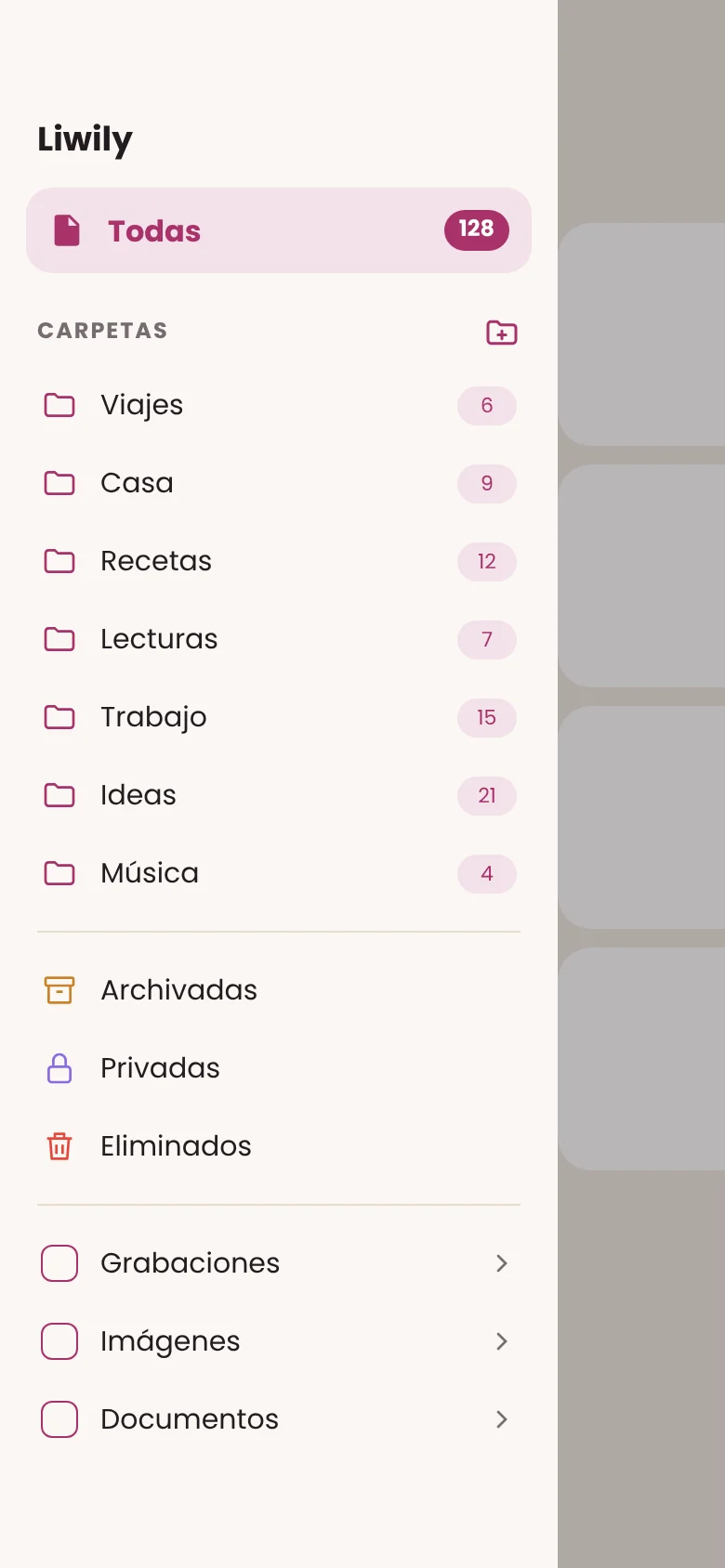
Your notes are stored on your device. No Liwily accounts, and Liwily has no servers that receive your notes.
Sync with your own Google Drive or a folder of your own, like iCloud Drive. Back up and export whenever you want.
Use the AI you prefer, with your own key. The text goes straight to the provider, and the first time you use each provider the app asks your permission.
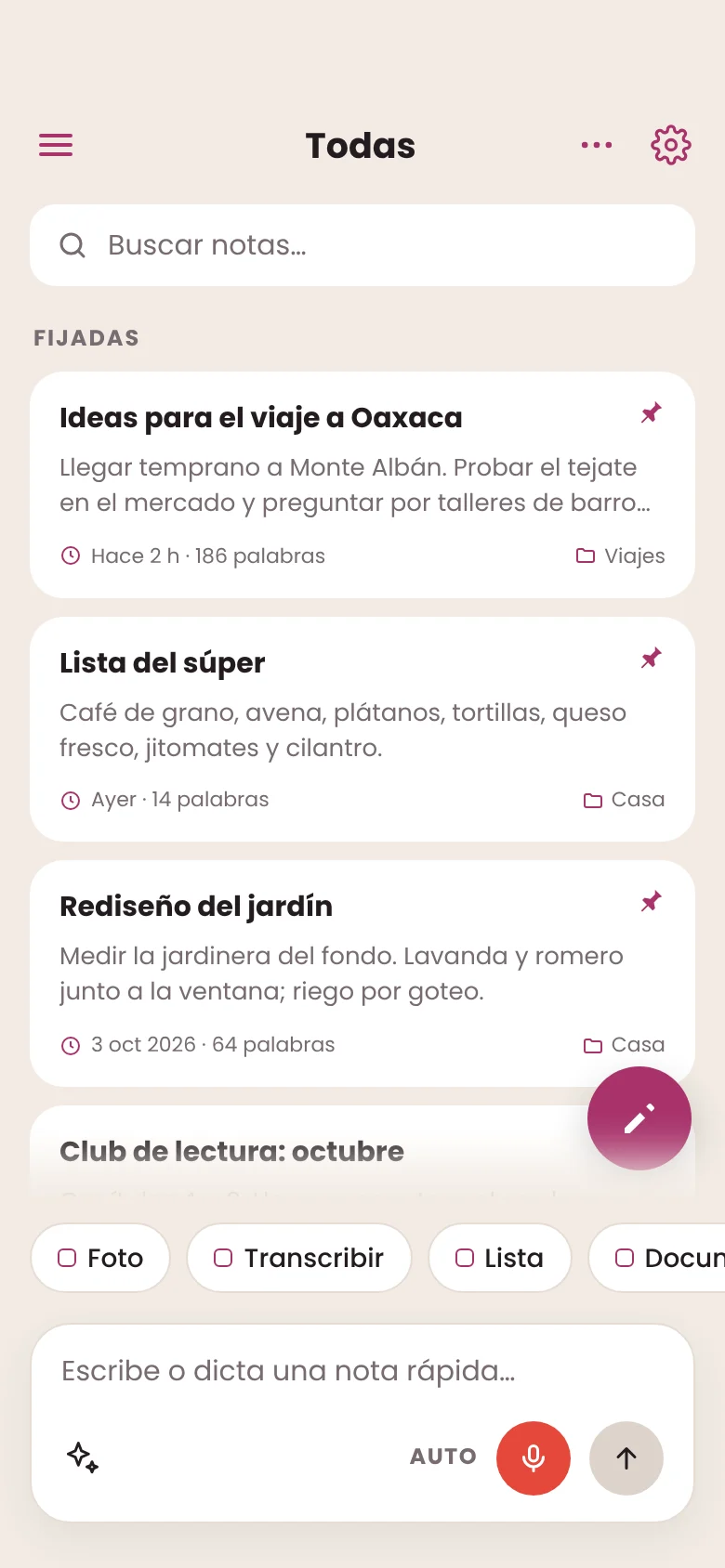
On iPhone and iPad, type or dictate in the quick actions box. One tap starts a photo, a transcription, a list or a document.
From the sidebar you reach your folders, your private and archived notes, and all your recordings, images and documents.
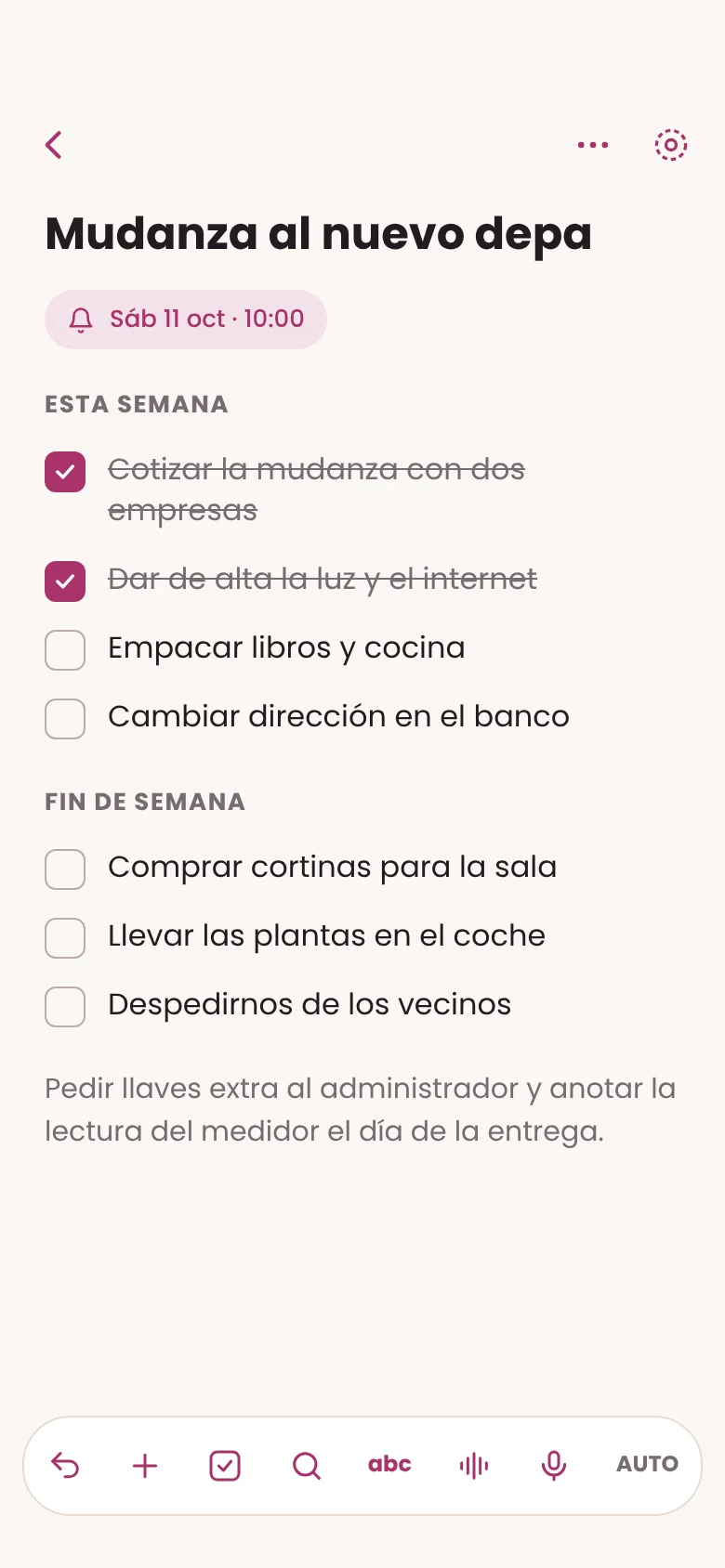
Turn any line into a task and check it off when you’re done. The list lives right next to what you were writing, with no app switching.
Notes, voice, documents and books in one place. Liwily has no servers that receive your notes.
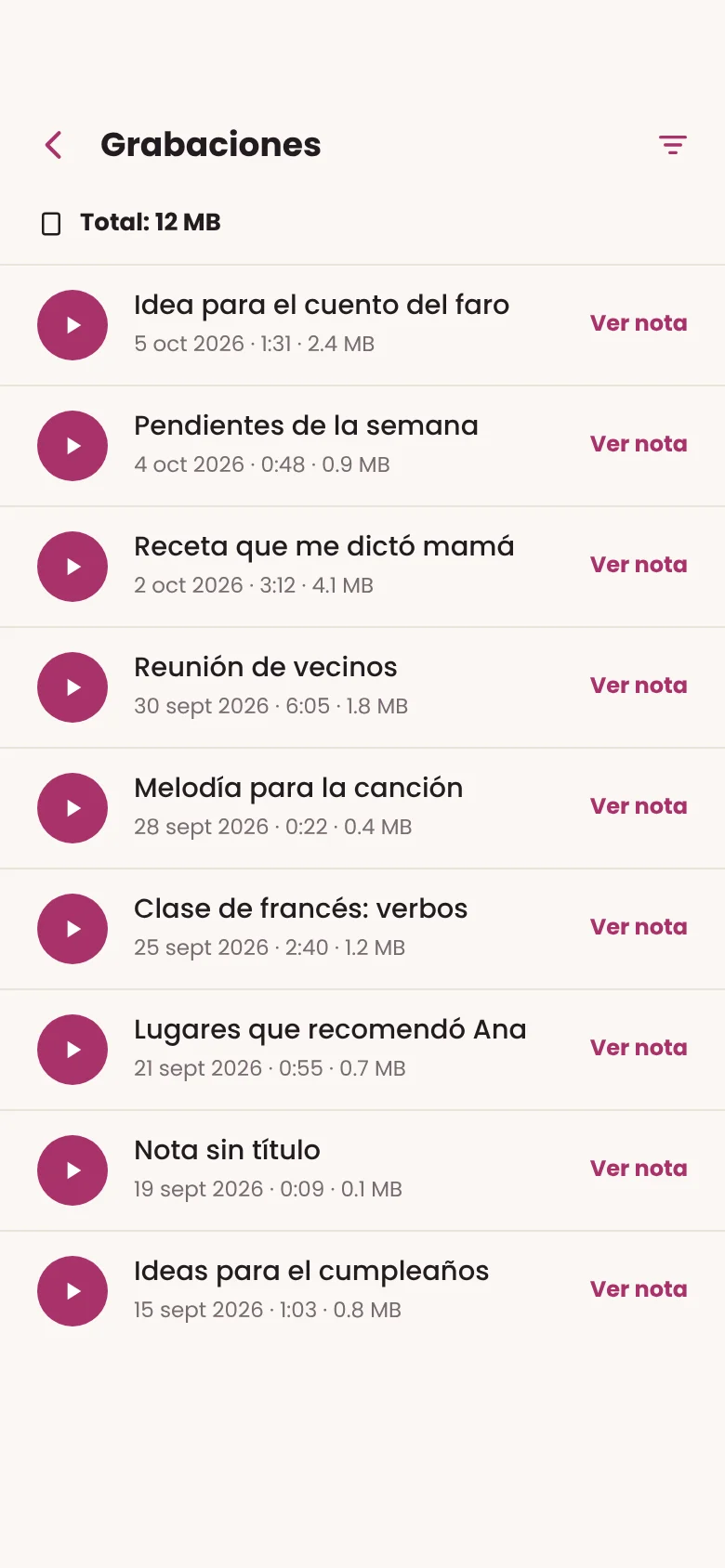
On iPhone and iPad: record, transcribe and create a copy with timestamps. The transcription keeps going while you use the app or switch to another one.
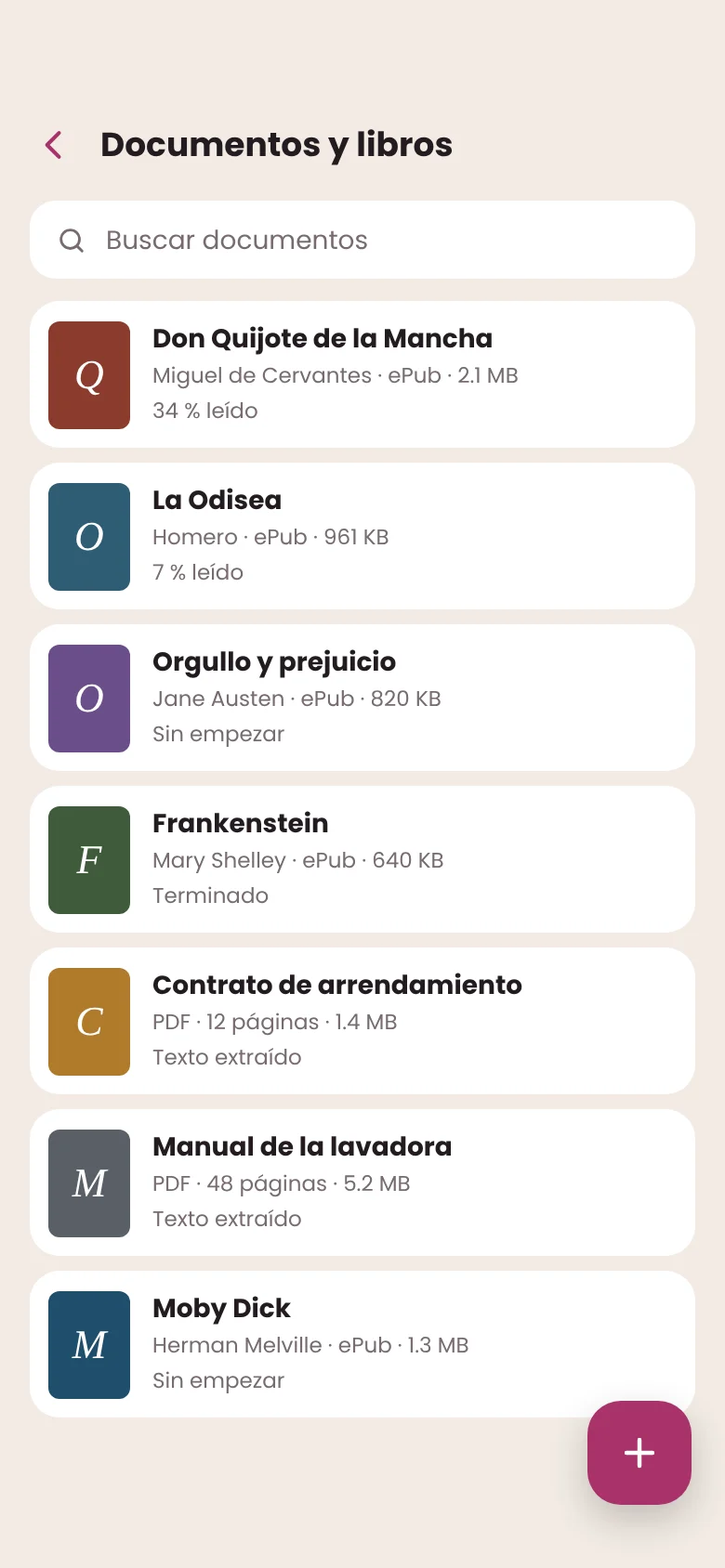
Scan with the camera on iPhone and iPad, or import images and files (Mac too). Add or remove pages and turn the text into a note.
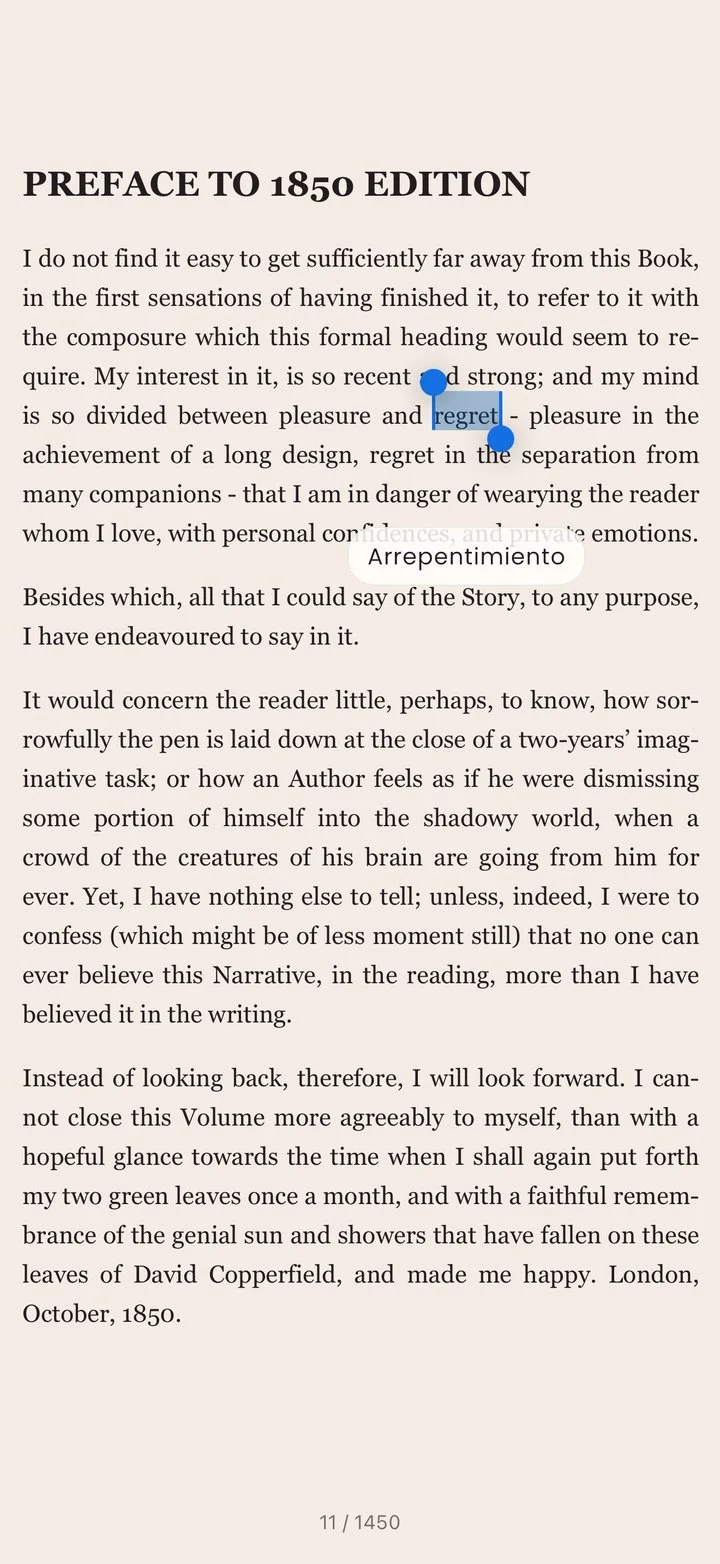
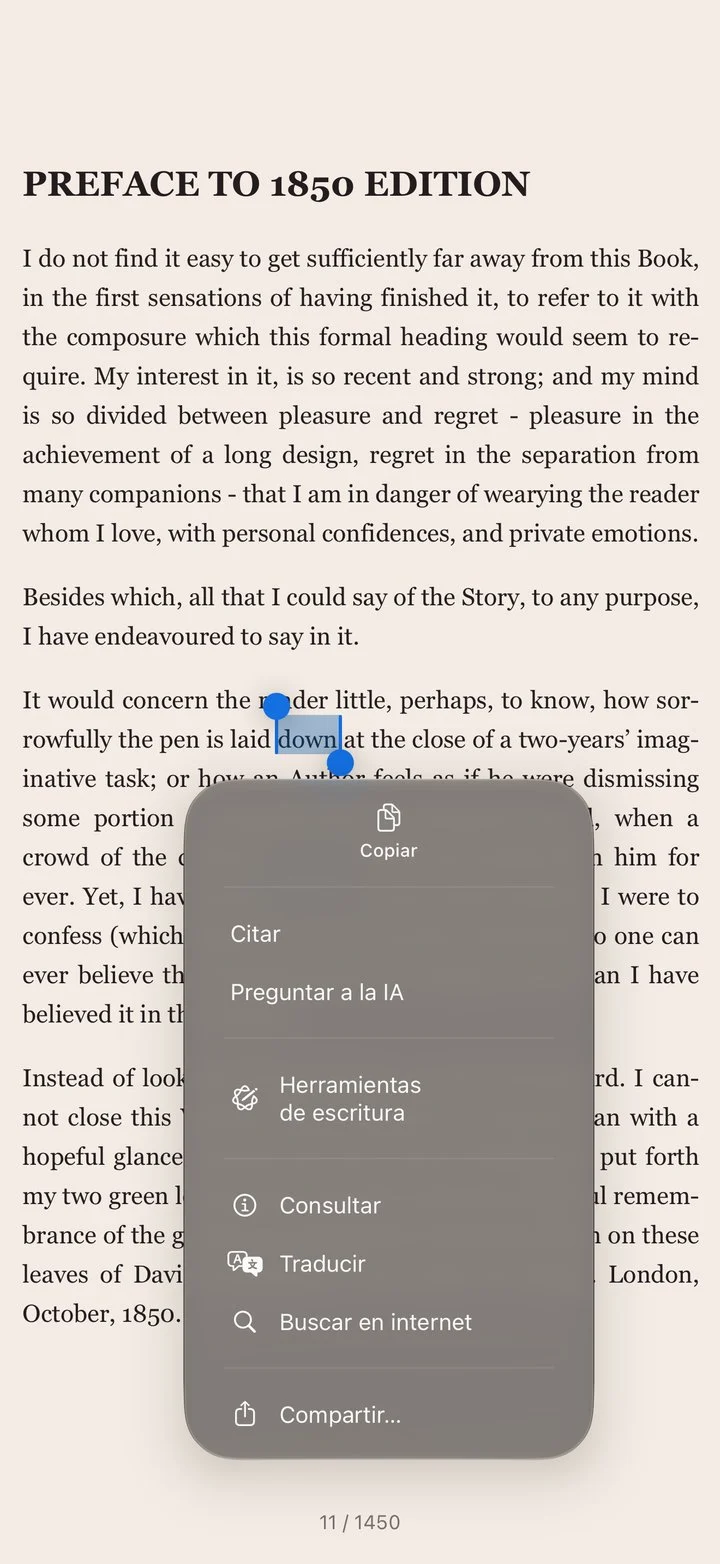
Page by page or continuous, and read aloud. Select a word to see its translation, offline. On Mac, in the dictionary too.
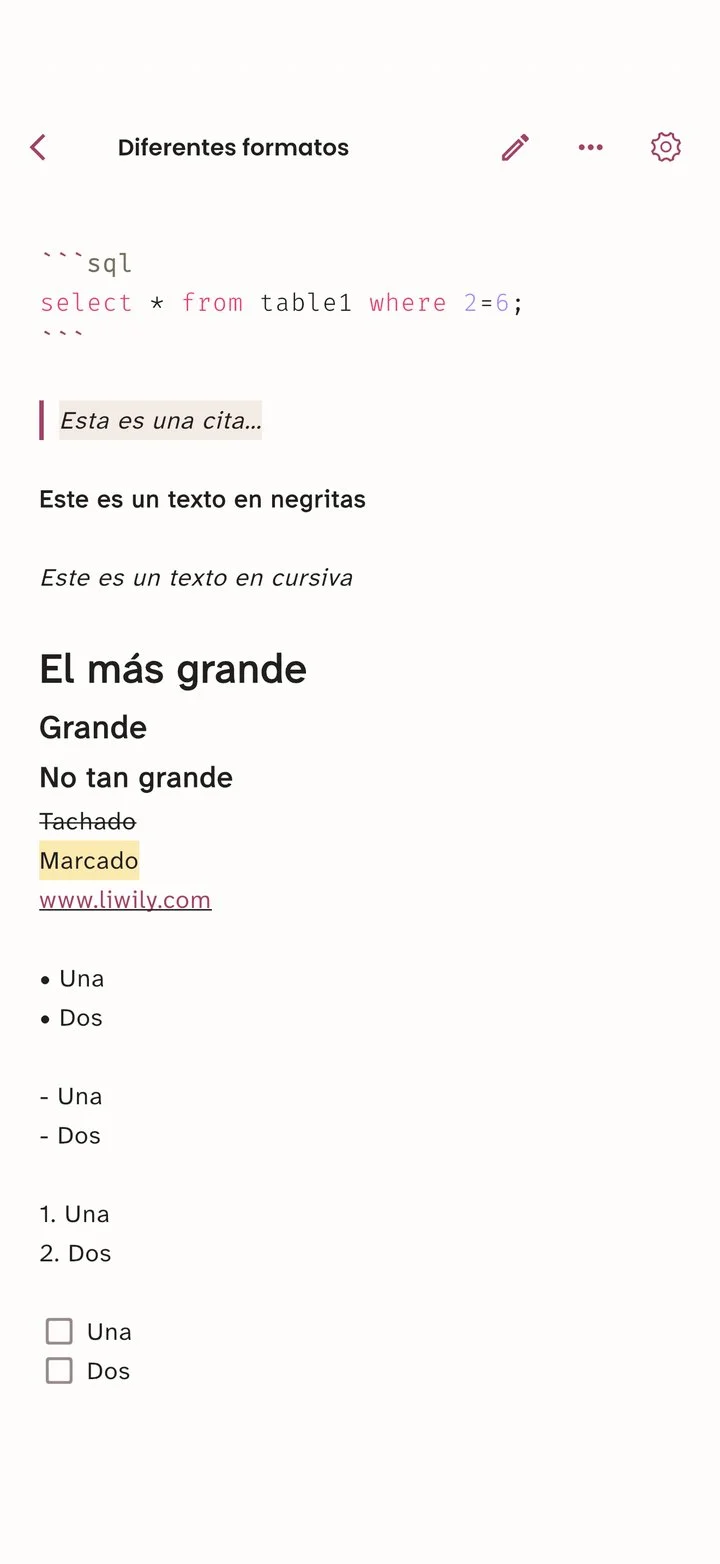
Headings, lists, quotes and code, with Markdown or the formatting bar.
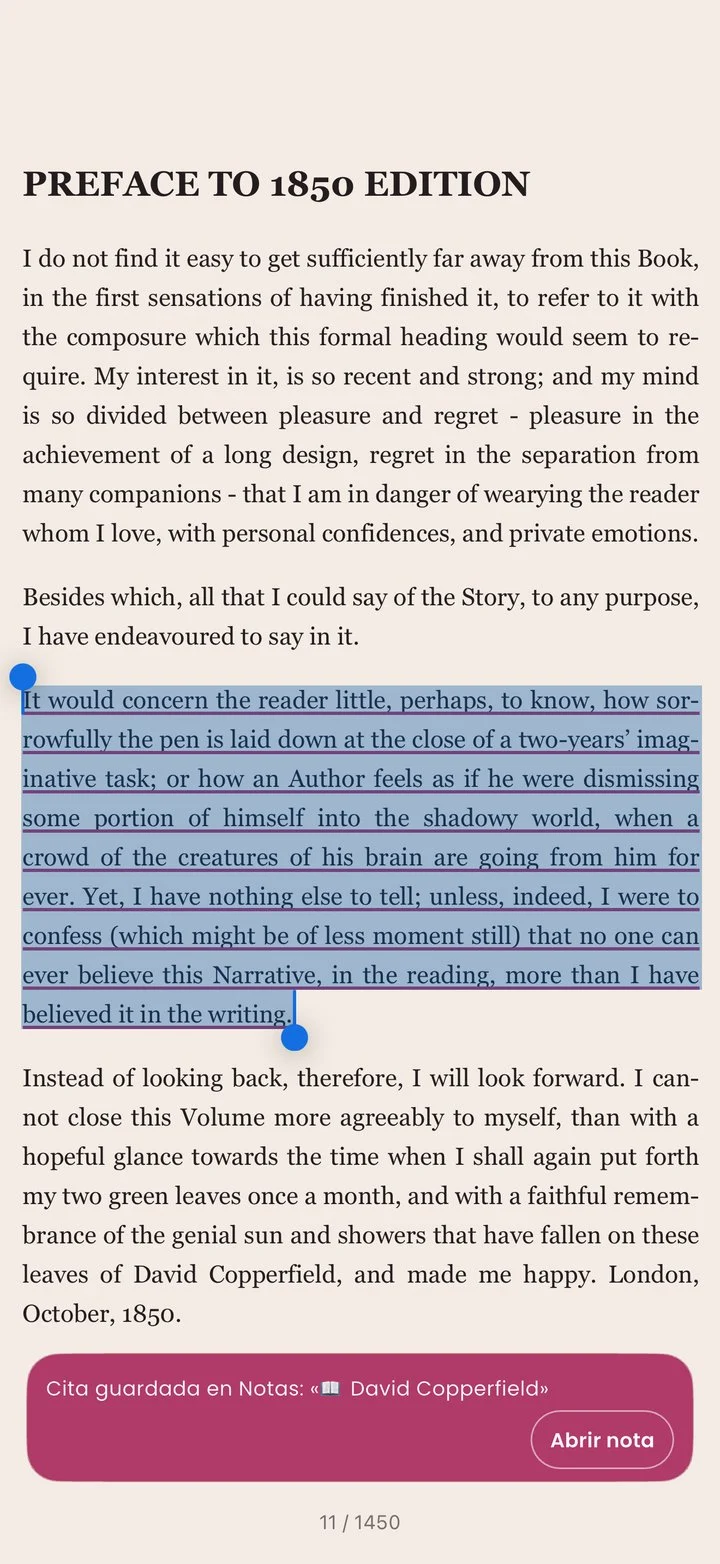
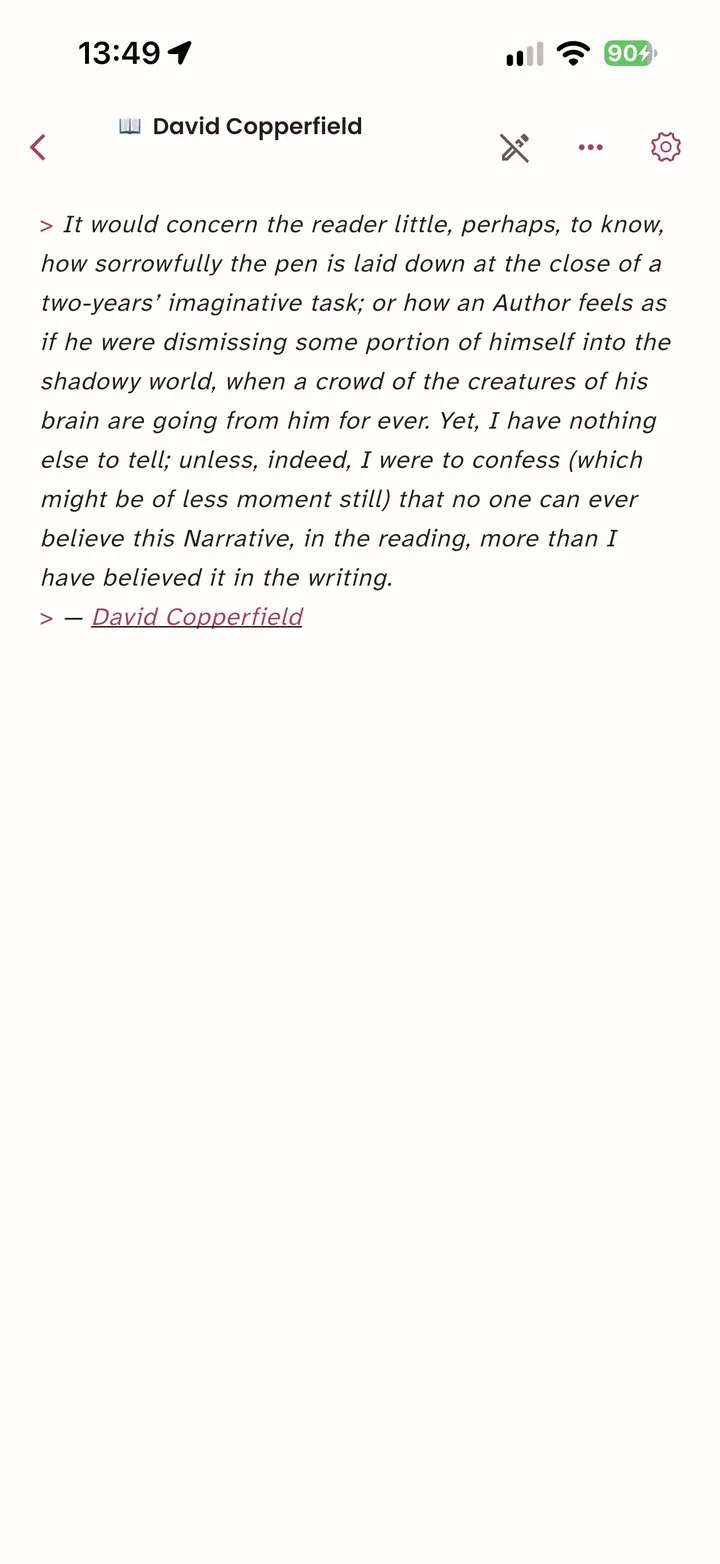
Select a paragraph and quote it. It’s saved in the book’s quotes note or in a new note, with the book’s name linked. Tap the source in the quotes note to go back to that exact passage.
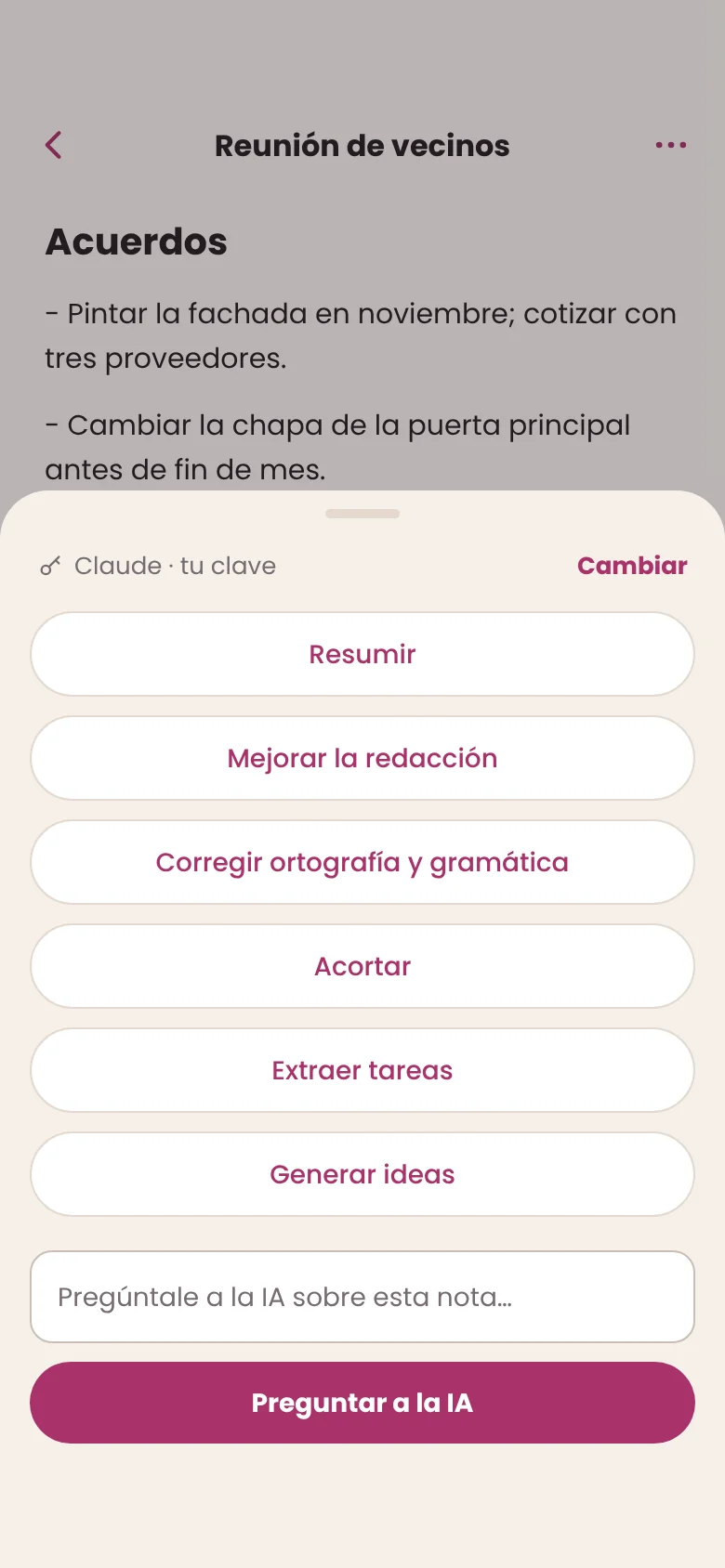
Summarize, proofread, shorten or extract tasks when you ask. You enter your provider’s key and the text goes straight from your device to it. Liwily isn’t in the middle.
Claude · OpenAI · Gemini · Grok · DeepSeek · Kimi. By default, private notes ask every time before they’re sent.
If you choose a provider, the AI can also improve the text extracted from your images and scanned documents.
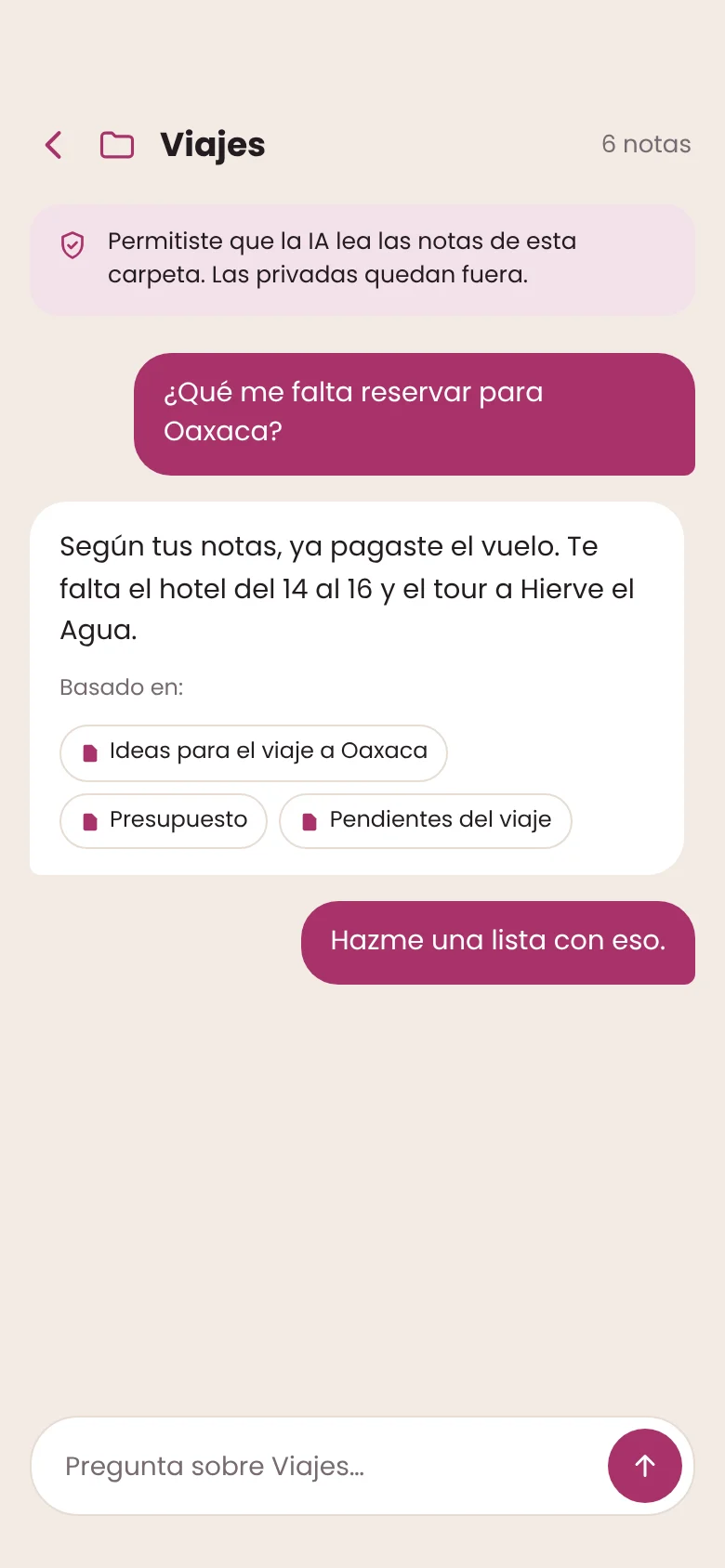
With your permission, the AI will be able to read the notes you choose. Search by ideas, not just words, or ask a whole folder about the topic it gathers.
It’s not a promise buried in a notice. It’s in the app, in plain sight.
Dictation uses Apple’s speech recognition, which may send the audio to Apple. Transcribing recordings on iOS 26 or later happens on your device.
Read the privacy notice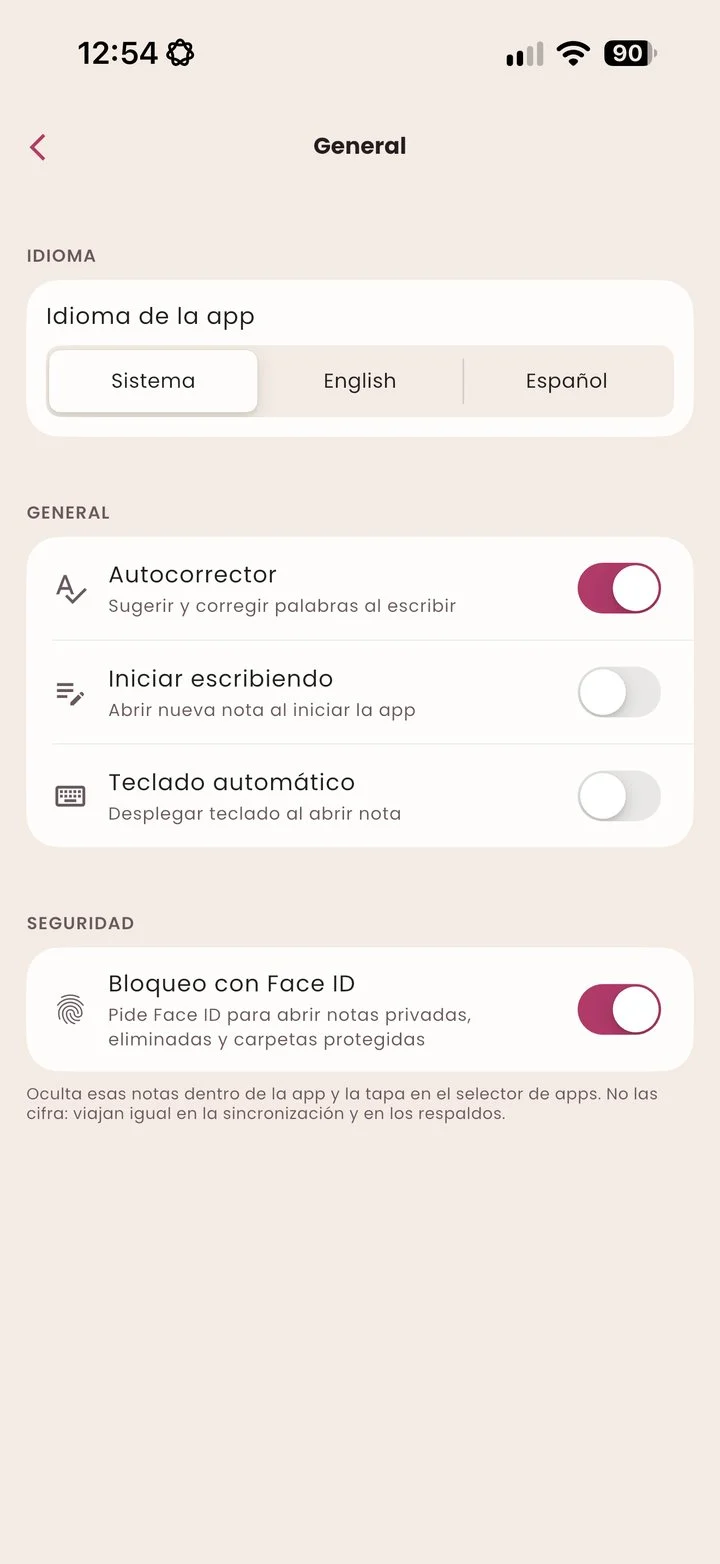
If you want your notes on several devices, sync with a service you already own. If not, nothing leaves.
In a private folder of the app, inside your own account.
Like iCloud Drive, or any you choose.
Without syncing, everything stays on your device. Back up whenever you like.
No. Liwily Notes works without accounts. Your notes are stored on your device from the very first moment.
No. We have no servers that receive your notes. If you sync, they go to your own service.
It’s optional. You use your own key from Claude, OpenAI, Gemini, Grok, DeepSeek or Kimi. The text goes straight to that provider, the app asks your permission the first time you use each provider, and the provider applies its own terms.
Restore everything from your sync or from a .liwily backup.
We’re polishing the final details. Write to us and we’ll let you know the day it reaches the App Store.
Yes, they’re on the way. We’re starting with iPhone, iPad and Mac.
Another question? Visit Support or read the privacy notice.